> For the complete documentation index, see [llms.txt](https://docs.3q.video/llms.txt). Markdown versions of documentation pages are available by appending `.md` to page URLs; this page is available as [Markdown](https://docs.3q.video/user-guide-new-ui/projects/on-demand/encoding-settings.md).
# Encoding Settings
### General
Open **Encoding Settings** for the project.
#### Encoding Activation
* **Activate Encoding ****(Must have)**\
Enables automatic encoding after media upload.
* **Default Source File Language**\
Defines the language of the original audio track.
#### Subtitles and Language Processing
* **Generate Subtitles Automatically**\
Automatically creates subtitles from the source audio.
* **Automatically Translated Subtitles**\
Select the target languages for automatic subtitle translation.
* **Automatic Dubbing**\
Optional. Can be enabled if dubbing is required.
***
### Output Formats
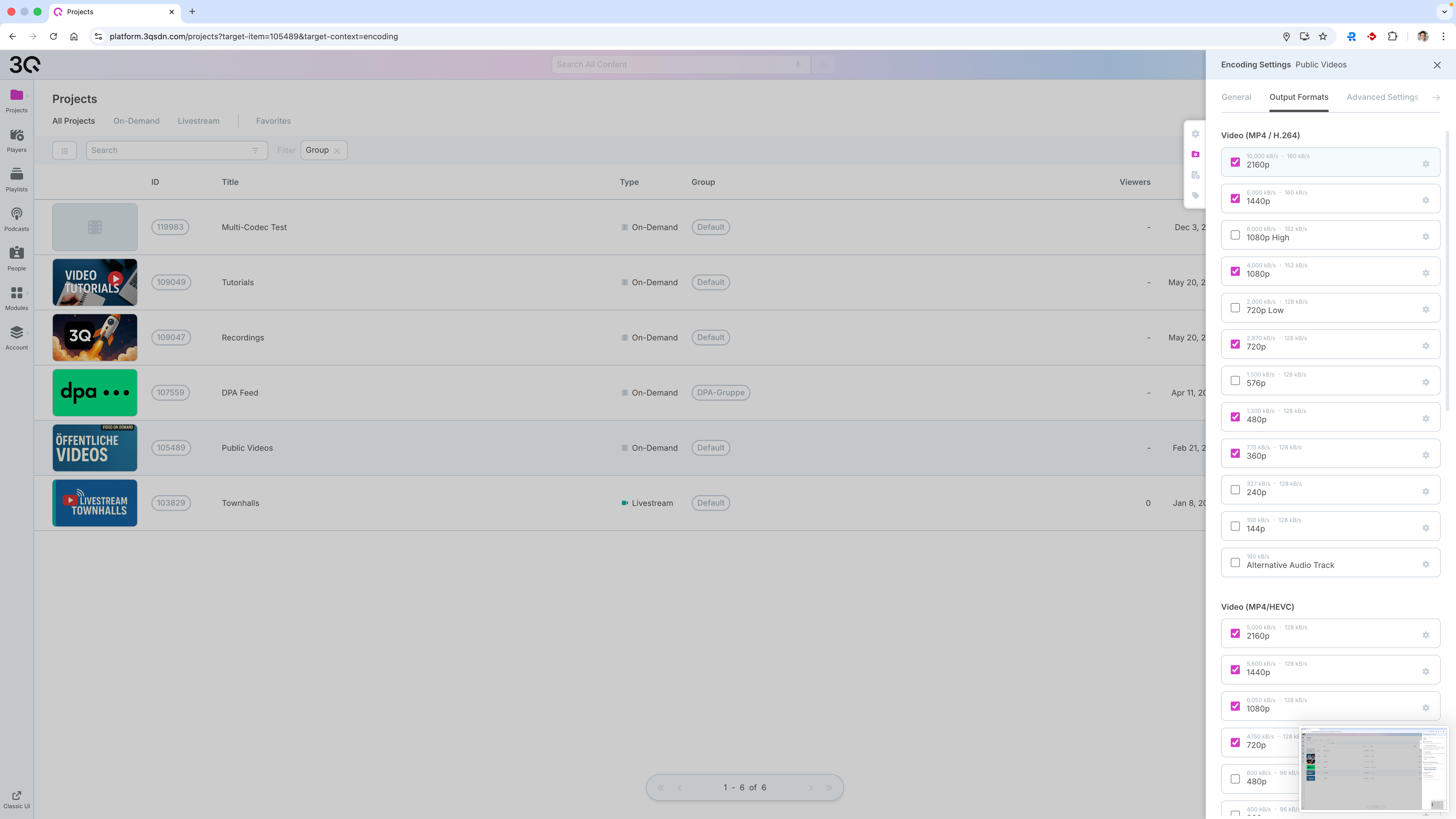
Under **Encoding Settings → Output Formats**, define which renditions are generated during encoding.
{% hint style="info" %}
The platform provides a **preconfigured default setup** that covers the requirements of most standard use cases. This default configuration is suitable for typical editorial, corporate, and informational video content and does not require adjustment in most scenarios.
{% endhint %}
A commonly used setup includes the following resolutions:
* 1080p
* 720p
* 480p
* 360p
* 240p
Higher resolutions such as **1440p** or **2160p** can be enabled if required, but should only be activated when necessary, as they increase encoding time, storage usage, and delivery bandwidth.
{% hint style="info" %}
**H.264** and other output formats can be combined. Mixed codec formats are created automacially and merged as combined streaming format in HLS and DASH.
{% endhint %}
**Custom Encoding Profiles**
For specialized content types, such as **sports, live recordings, or high-motion footage**, the default settings can be adapted:
* Target video bitrate can be adjusted per rendition
* Frame rates such as **50 fps or 60 fps** can be configured (We recommend to use the default setting passthrough)
* Audio bitrate, sample rate, and channel layout can be modified
* Video profile and codec settings can be fine-tuned
These options allow customers to optimize output quality for specific content characteristics while maintaining full control over resource usage and playback compatibility.
***
### Advanced Options
Under **Encoding Settings → Advanced Settings**:
* **CMAF Packaging (Fragmented MP4)**\
Recommended for modern HLS and DASH delivery. (Default in the near future.)
* **Cover Creation Control**\
Automatically generates multiple thumbnails at defined intervals.
* **Normalize Audio**\
Optional loudness normalization.
* **Include Audio-only Version**\
Adds an audio-only track to the streaming manifest.
***
### Watermark Configuration
Under **Encoding Settings → Watermark**:
1. Upload a watermark image (PNG with transparency recommended).
2. Enable **Use Watermarks**.
3. Select position and transparency level.
Watermarks are applied during encoding.
### Glossary
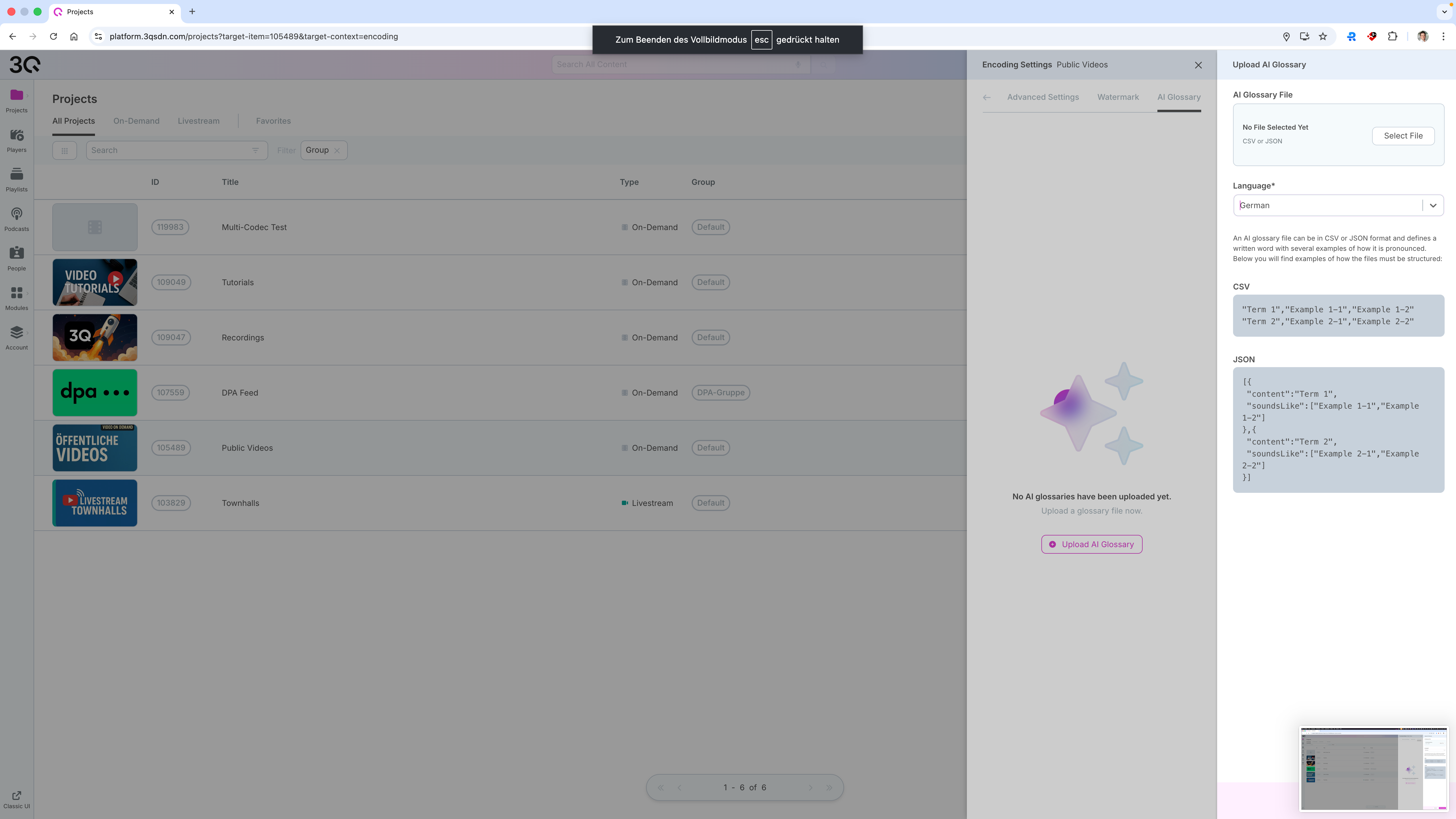
The **AI Glossary** feature allows you to improve the accuracy of automatically generated subtitles and AI-based audio processing by providing a custom pronunciation and terminology reference.
An AI glossary can be uploaded in **CSV** or **JSON** format and defines specific terms, names, abbreviations, or technical expressions, along with their intended pronunciation. This is especially useful for:
* Proper names (e.g. people, brands, locations)
* Technical terminology
* Foreign words or abbreviations
* Domain-specific vocabulary
**Uploading an AI Glossary**
To upload a glossary:
1. Open **Encoding Settings → AI Glossary**
2. Select a glossary file in **CSV** or **JSON** format
3. Specify the language the glossary applies to
4. Upload the file
Once uploaded, the glossary is automatically applied during subtitle generation and AI-driven language processing for this project.
**Supported File Formats**
**CSV format**\
Each entry consists of a term and one or more pronunciation examples.
**JSON format**\
Allows structured definitions with multiple pronunciation variants per term.
Example structures are displayed directly in the interface to ensure correct formatting.
**Scope and Behavior**
* The glossary applies **project-wide** to all newly processed media
* Existing subtitles are not retroactively updated
* Multiple glossary entries can be maintained and updated over time
* If no glossary is uploaded, standard AI language processing is used
Using an AI glossary helps ensure consistent terminology and significantly improves subtitle quality for specialized or branded content.
---
# Agent Instructions
This documentation is published with GitBook. GitBook is the documentation platform designed so that both humans and AI agents can read, navigate, and reason over technical content effectively. Learn more at gitbook.com.
## Querying This Documentation
If you need additional information that is not directly available in this page, you can query the documentation dynamically by asking a question.
Perform an HTTP GET request on the current page URL with the `ask` query parameter, and the optional `goal` query parameter:
```
GET https://docs.3q.video/user-guide-new-ui/projects/on-demand/encoding-settings.md?ask=&goal=
```
`ask` is the immediate question: it should be specific, self-contained, and written in natural language.
`goal` is optional and describes the broader end goal you are ultimately trying to accomplish on behalf of the user. GitBook uses it to tailor the answer towards what is most useful for that goal.
The response will contain a direct answer to the question and relevant excerpts and sources from the documentation.
Use this mechanism when the answer is not explicitly present in the current page, you need clarification or additional context, or you want to retrieve related documentation sections.