> For the complete documentation index, see [llms.txt](https://docs.3q.video/llms.txt). Markdown versions of documentation pages are available by appending `.md` to page URLs; this page is available as [Markdown](https://docs.3q.video/user-guide-new-ui/projects/livestreaming.md).
# Livestreaming
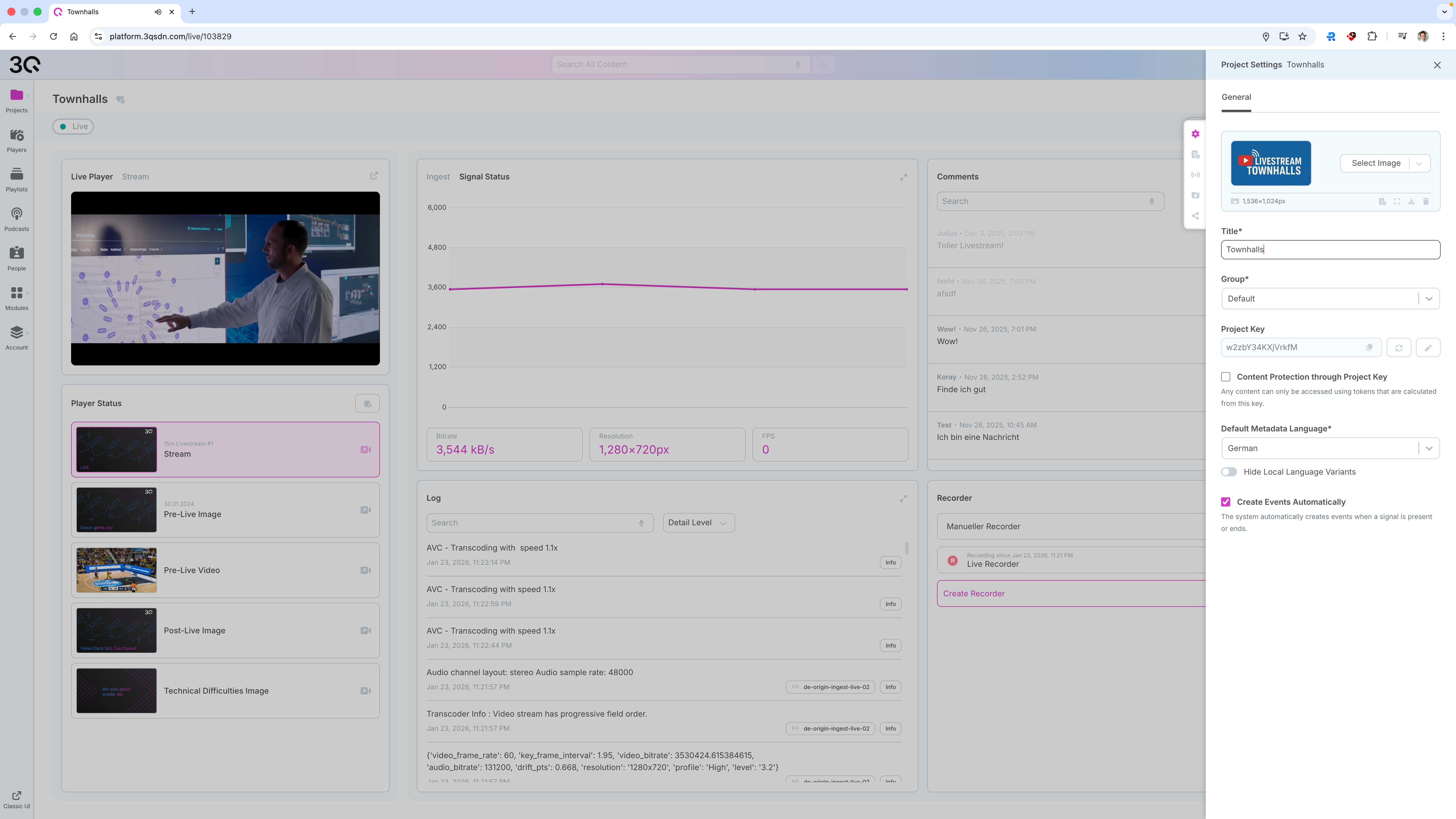
This section describes a typical end-to-end workflow for running a livestream in the 3Q platform, from preparing ingest settings to sharing the player and creating recordings. The steps reflect the live control view shown in the screenshots.
***
### Live Control View
1. In **Projects**, open the livestream project you want to broadcast.
2. The project opens in the **Live Control View**. A **Live** badge indicates the project type and current state.
{% hint style="info" %}
During the event, you can view the current number of viewers in real time at any moment, and afterwards analyse usage in detail within the Analytics module.
{% endhint %}
The Live Control View is split into:
* **Live Player** (monitoring output)
* **Player Status** (state-dependent visuals)
* **Signal Status** (ingest monitoring)
* **Log** (technical events)
* **Recorder** (recording control)
* Optional panels (Comments, Settings, Playout and Sharing)
***
#### Stream Health in Signal Status
1. Review the **Signal Status** graph to confirm stable ingest.
2. Verify key values:
* **Bitrate**
* **Resolution**
* **FPS**
* **Codecs** (for example, H.264 / AAC)
If values are missing or unstable, check encoder configuration and network conditions, then review the Log for warnings.
***
#### Monitor Technical Events in the Log
1. Use the **Log** panel to track processing events and potential issues.
2. Use the **Detail Level** filter to switch between:
* All entries
* Warnings and errors
* Only errors
3. Use **Search** to find specific messages (for example, transcoding, ingest endpoint, audio layout).
For deeper context, use the **Info** action on a log entry when available.
***
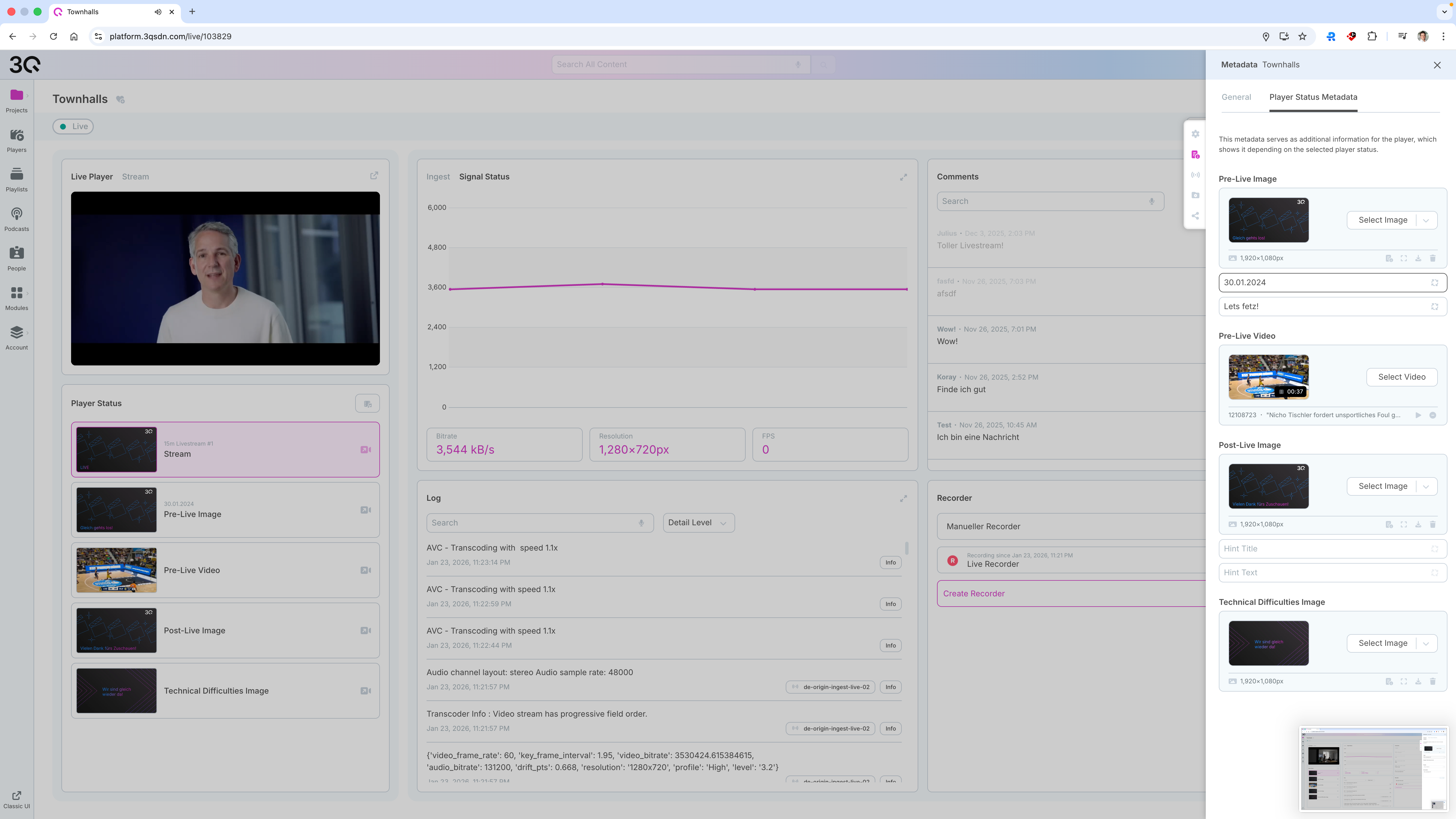
### Player status assets (Recommended)
Player status assets define what viewers see in the embedded video player during different phases of a live stream. Configuring these assets ensures a consistent and predictable viewing experience - especially before a stream starts, after it ends, or if technical issues occur.
{% hint style="info" %}
When switching between player states, it can take **3–8 seconds** for updates to propagate and become visible to viewers in the embedded player.
{% endhint %}
You can control exactly what users see in the player embedded in your app or website by assigning images or videos to the following states:
* **Stream** (active live playback)
* **Pre-Live Image** (waiting screen before livestream event starts)
* **Pre-Live Video** (optional waiting video)
* **Post-Live Image** (shown after ingest ends)
* **Technical Difficulties Image** (fallback screen for interruptions)
Ensure these assets are configured before going live to provide a predictable viewer experience.
***
### Create and manage a recording
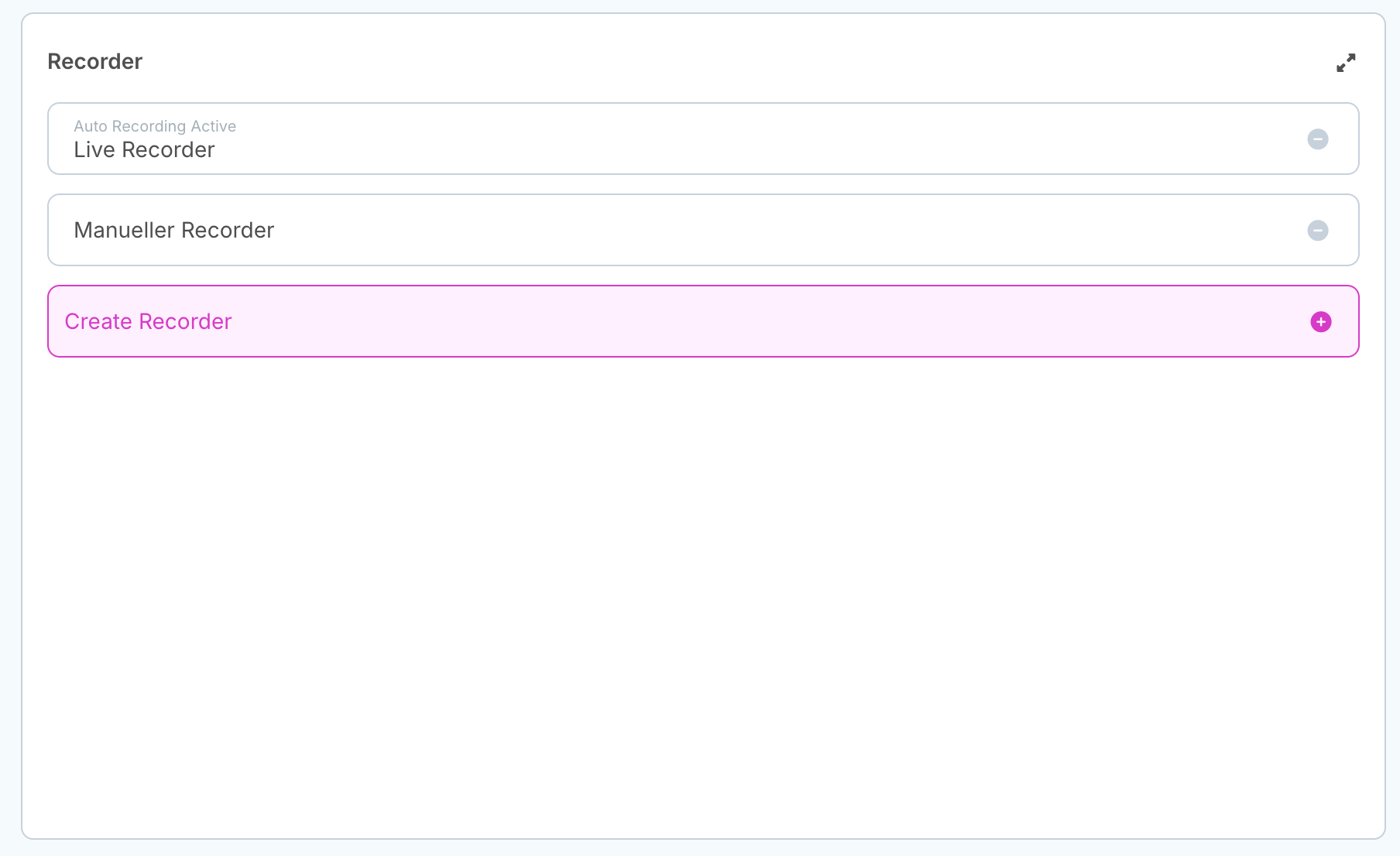
Recordings are managed in the **Recorder** section.
To create a recorder:
1. In **Recorder**, select **Create Recorder**.
2. In the settings panel, define:
* **Title** and optional **Description**
* **Target Project** (destination project for the resulting recording)
* **Enable Auto Recording** (recording starts/stops automatically with signal presence)
* Optional: **Enable Interval Recording** (splits long recordings into segments based on the selected interval)
After saving, active recorders are listed in the Recorder area with their status.
***
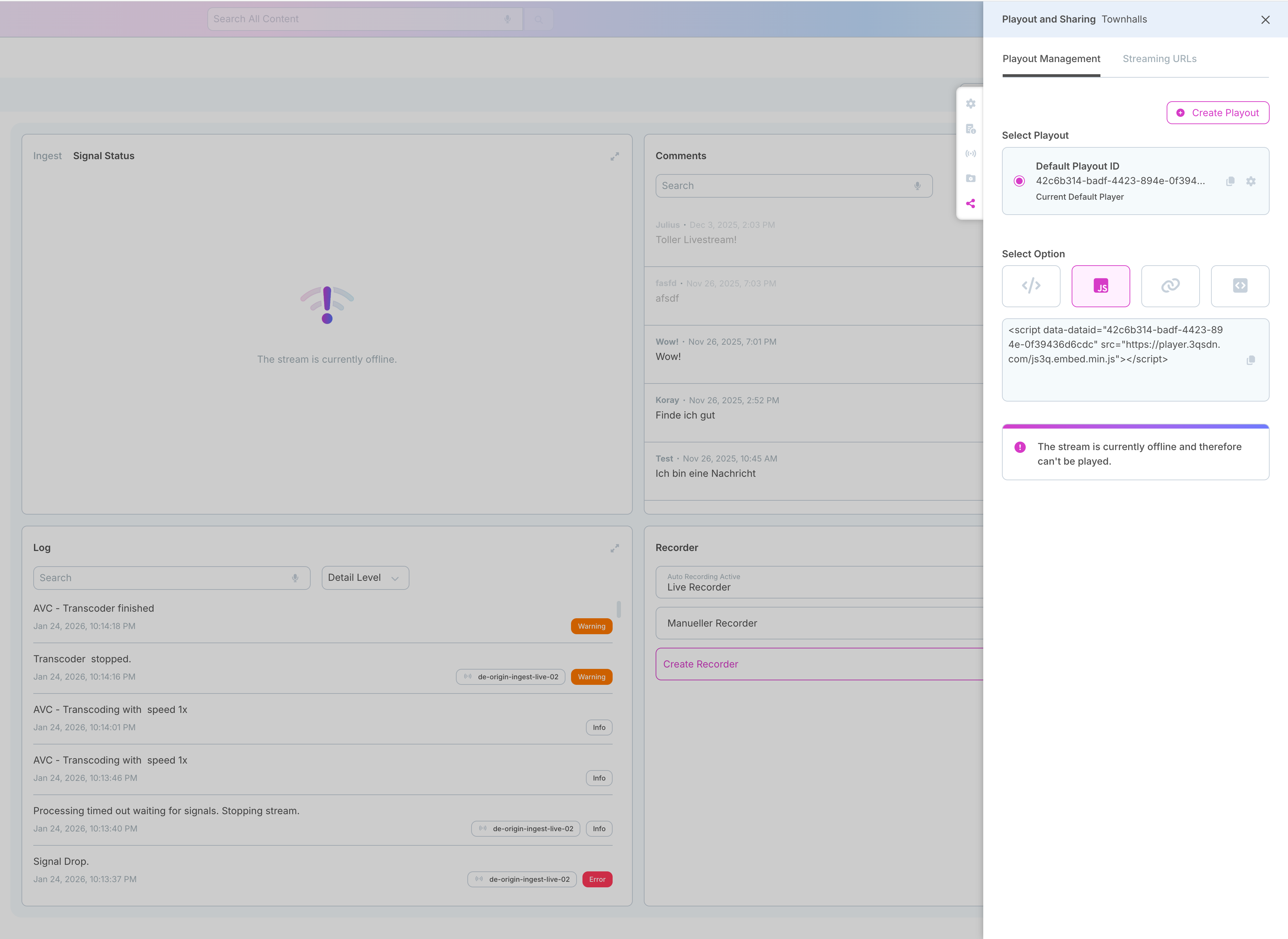
### Publish and Share the Livestream (Playout and Sharing)
To embed or distribute the livestream, use **Playout and Sharing**:
1. Select **Playout and Sharing** in the top-right area.
2. In **Playout Management**:
* Choose the playout configuration (for example, the default playout).
* If required, select **Create Playout** to create an additional playout configuration.
* Copy the **embed code** (iframe, javascript) for websites and portals.
* Optional settings may include display behavior such as dynamic scaling and performance options such as lazy loading.
3. In **Streaming URLs**:
* Access the platform-generated stream URLs (for example **HLS (H.264)**).
* Copy the required URL for distribution, monitoring, or external systems.
{% hint style="info" %}
Use playout options when you want a controlled player integration. Use streaming URLs when you need direct stream access (for example custom videoplayers or monitoring).
{% endhint %}
***
### Reset Timeshift
{% hint style="info" %}
The **Reset Timeshift** option is only available when Timeshift is enabled for the project **and** the live ingest signal is currently offline.
{% endhint %}
If timeshift is enabled for the project, the UI may provide a **Reset Timeshift** button in the top-right control area.
Use this function to reset the timeshift buffer when needed (for example after ingest changes or operational resets). This action is typically used during production operations and should be applied deliberately.
***
### End a Livestream
When the broadcast is finished:
1. Stop the encoder output (recommended as the primary stop action).
After ingest ends:
* We recommend to switch the embed state to **Post-Live.**
* The **Log** will show finalization events.
* Recorder output is completed and delivered to the configured target project (depending on recorder settings).