On-Demand

The Asset Management area is the central workspace for managing all On-Demand media within a project. This is where video and audio files are uploaded, organized, reviewed, and maintained throughout their lifecycle.
From this view, users can:
Upload new On-Demand content
Manage existing media assets
Edit editorial and technical metadata
Control publication status and availability
Organize content using categories, types, and tags
The Asset Management interface provides both high-level visibility and detailed control, making it suitable for daily editorial work as well as large-scale media operations.
Video List Overview
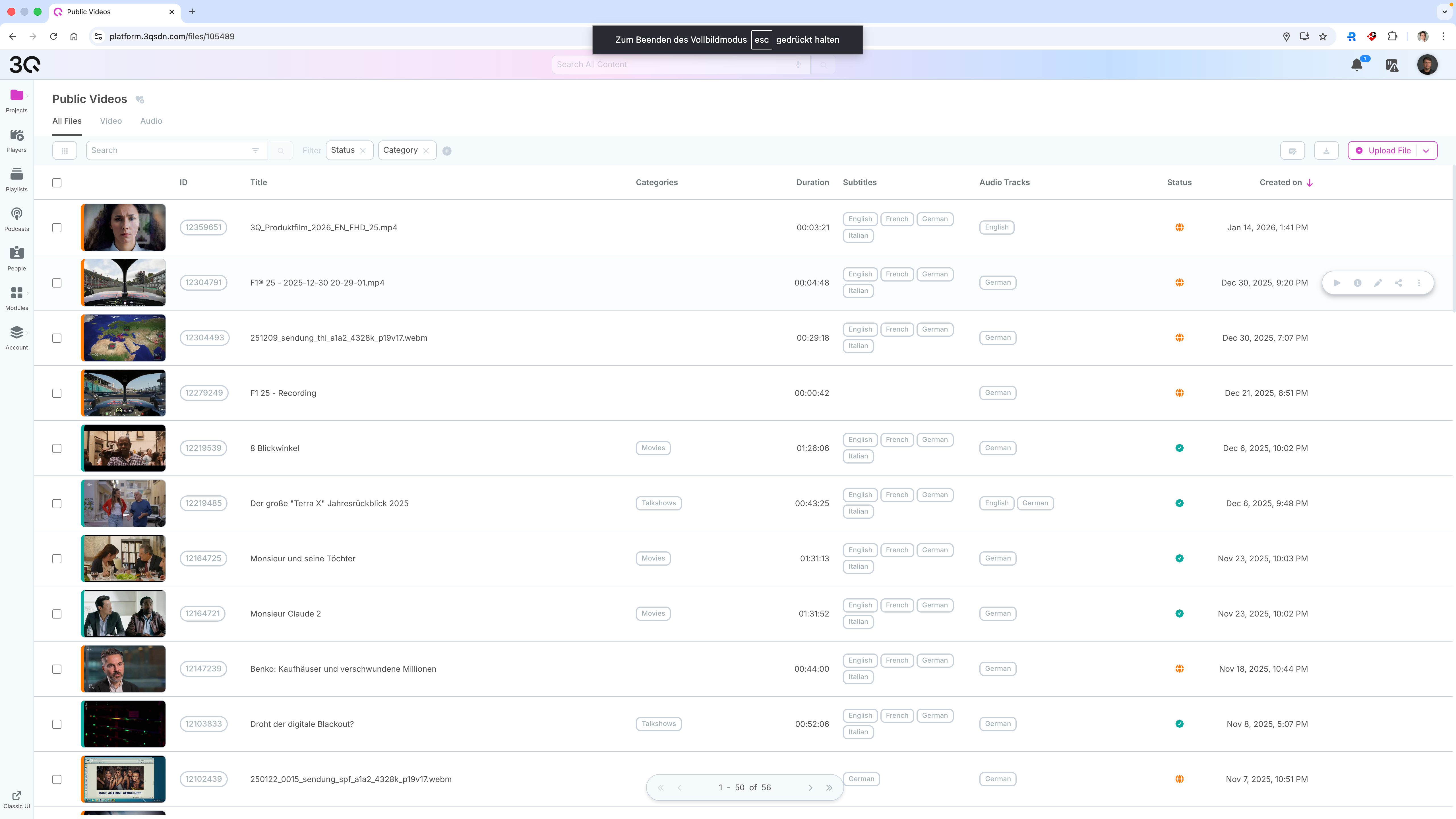
The Video List displays all media assets available within the current project in a structured, tabular view. Each row represents a single asset and provides immediate access to its most relevant metadata and status information.
By default, the list includes:
A thumbnail preview of the asset
The unique media ID
The asset title
Assigned categories
Duration
Available subtitle languages
Available audio tracks
Publication status
Creation date
The list supports pagination and sorting, allowing efficient navigation even in large media libraries.
The video list is fully customizable. Users can choose which columns and metadata fields are displayed, allowing the list to be tailored to individual workflows and preferences. This makes it easy to focus on the information that is most relevant for specific tasks such as content review, quality control, or publishing.
List Controls and Options
At the top of the video list, several controls are available to refine and customize the view:
Search allows filtering assets by various metadata fields such as ID, title, description, tags, or uploader.
Filters enable narrowing results by status, category, and additional metadata attributes.
View customization lets users define which columns and attributes are displayed in the list.
Bulk selection via checkboxes enables batch operations on multiple assets at once.
These options allow users to adapt the video list to different workflows, such as editorial review, content preparation, or operational monitoring.
Editing Media

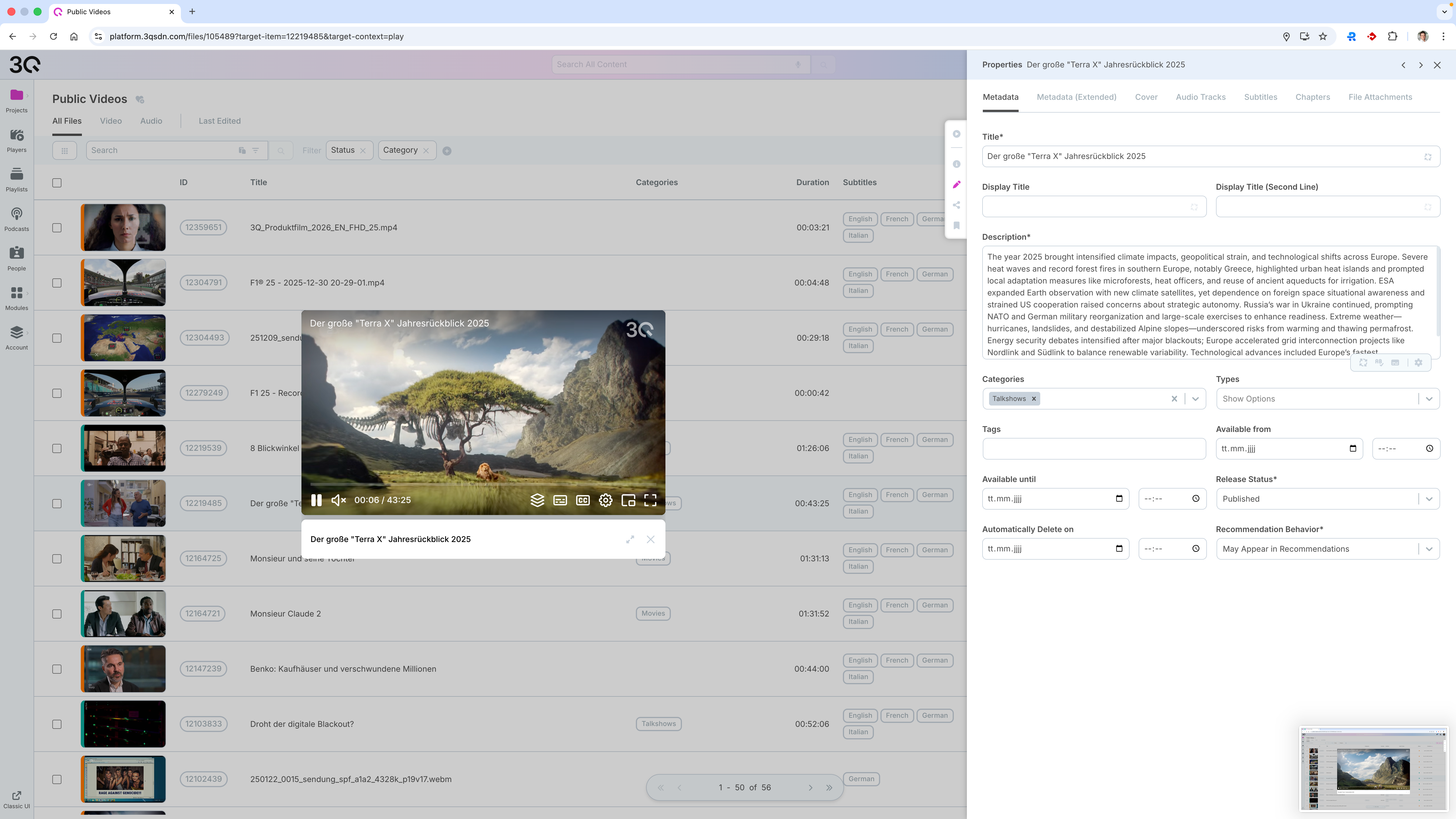
Clicking on a media item in the video list opens the asset detail view, which provides access to playback, metadata, and all configuration options for the selected asset.
The asset detail view is divided into two main areas:
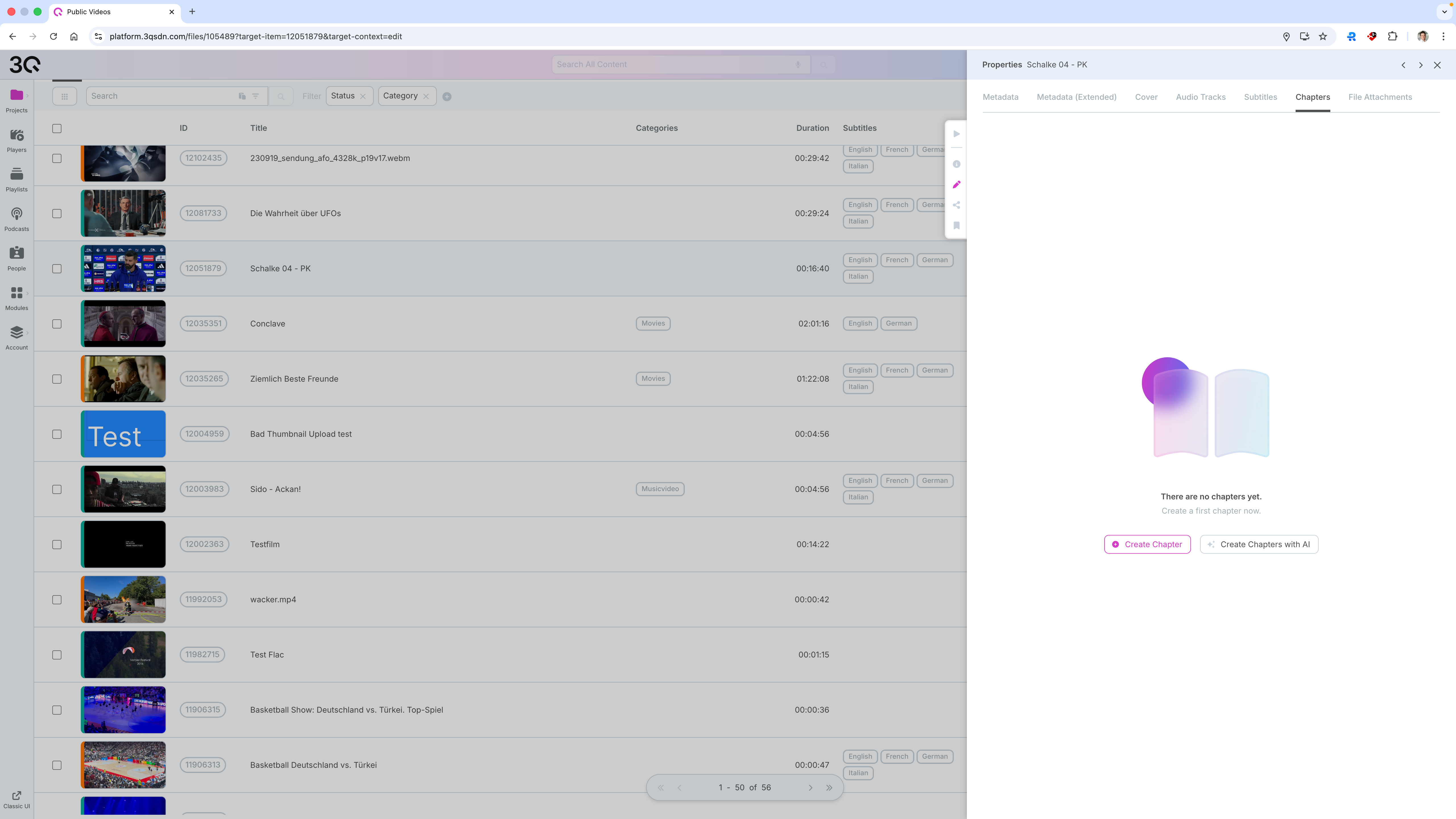
Preview Player The integrated player allows immediate playback of the asset for review and quality control. It reflects the currently available audio tracks, subtitles, and chapters, enabling quick validation without leaving the management interface.
Properties Panel The properties panel contains all editable settings for the asset and is organized into dedicated tabs, including:
Metadata and Extended Metadata for editorial information such as titles, descriptions, categories, tags, availability windows, and publication status
Cover for managing poster images and thumbnails
Audio Tracks for configuring multiple language versions, commentary tracks, and default playback behavior
Subtitles for managing subtitle languages and files
Chapters for defining navigation points within the video
File Attachments for related documents or additional assets
Changes made in the properties panel are applied directly to the asset and affect how it is presented and delivered across players and platforms.
This structured approach allows precise control over each media asset while keeping editorial, technical, and distribution-related settings clearly separated.
Metadata
The Metadata tab contains the core editorial information of an asset. Here you define how the video is identified, described, and scheduled within the platform.
Key options include:
Title and optional display titles
Description, which can be written manually or generated with AI assistance
Categories and tags for classification and discovery
Availability windows (available from / until)
Release status (e.g. draft, published)
Recommendation behavior, controlling whether the asset may appear in recommendations
This information is used across players, APIs, and recommendation systems.
Metadata (Extended)
The Metadata (Extended) tab allows you to enrich the asset with additional contextual and technical information.
Typical use cases:
Assigning people (e.g. contributors or protagonists)
Adding geolocation data (latitude/longitude)
Defining country of production and source
Setting initial release dates
Controlling distribution-related flags such as mobile publishing or ad availability
These fields are optional but valuable for advanced workflows, editorial context, and integrations.
Cover
The Cover tab is used to manage the visual representation of the asset.
Available options:
Select a cover image from existing video frames
Upload a custom image
Replace or update covers at any time
The cover image is used in asset lists, players, and front-end applications, making it a key element for user engagement.
Audio Tracks

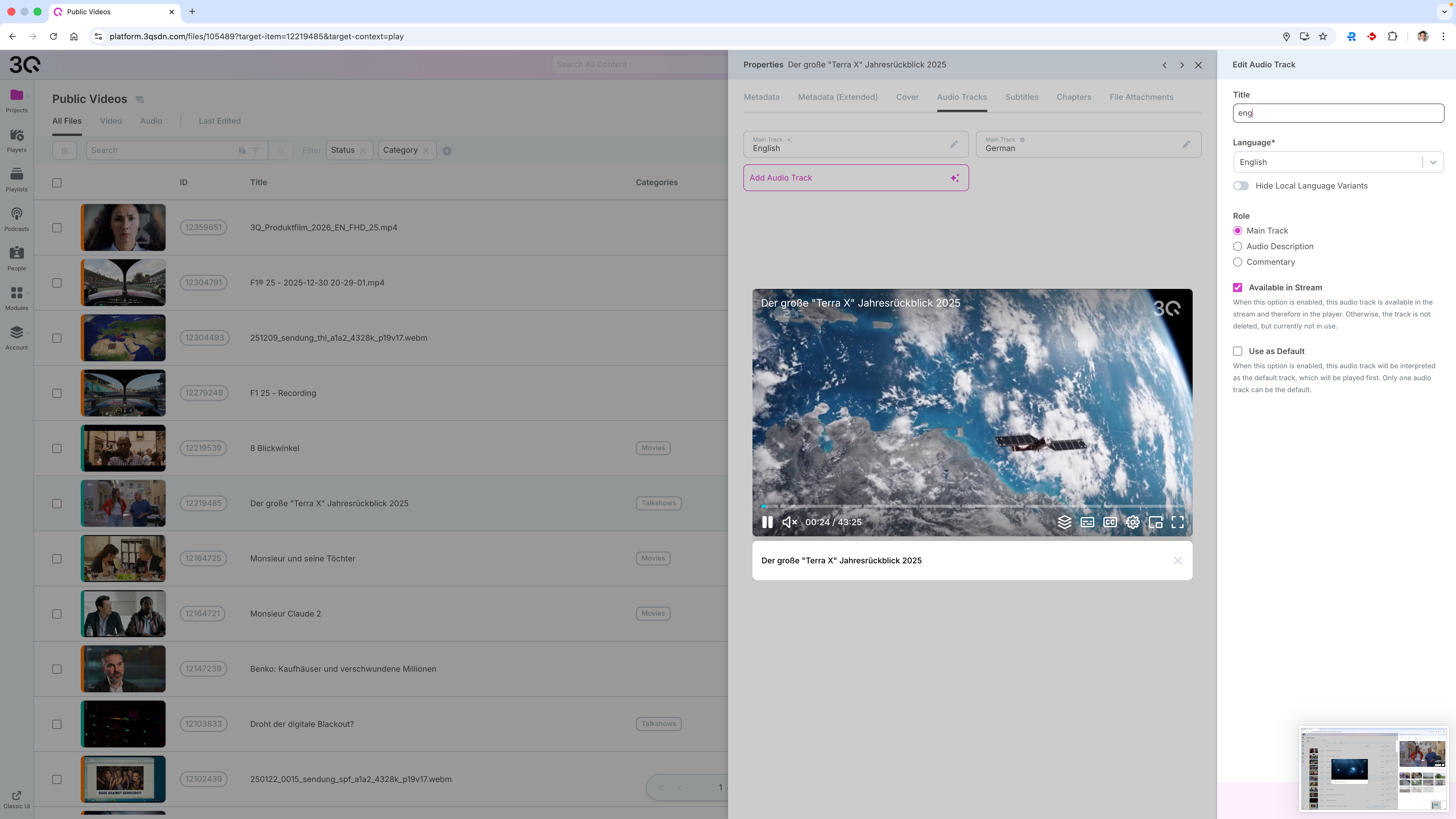
In the Audio Tracks tab you can manage all audio versions associated with the video.
Supported actions:
Define one or more main audio tracks
Add additional language tracks
Create AI-generated audio tracks from subtitles
Assign roles such as main track, commentary, or audio description
Set a default audio track for playback
This enables multilingual delivery and accessibility use cases without duplicating video assets.
Subtitles

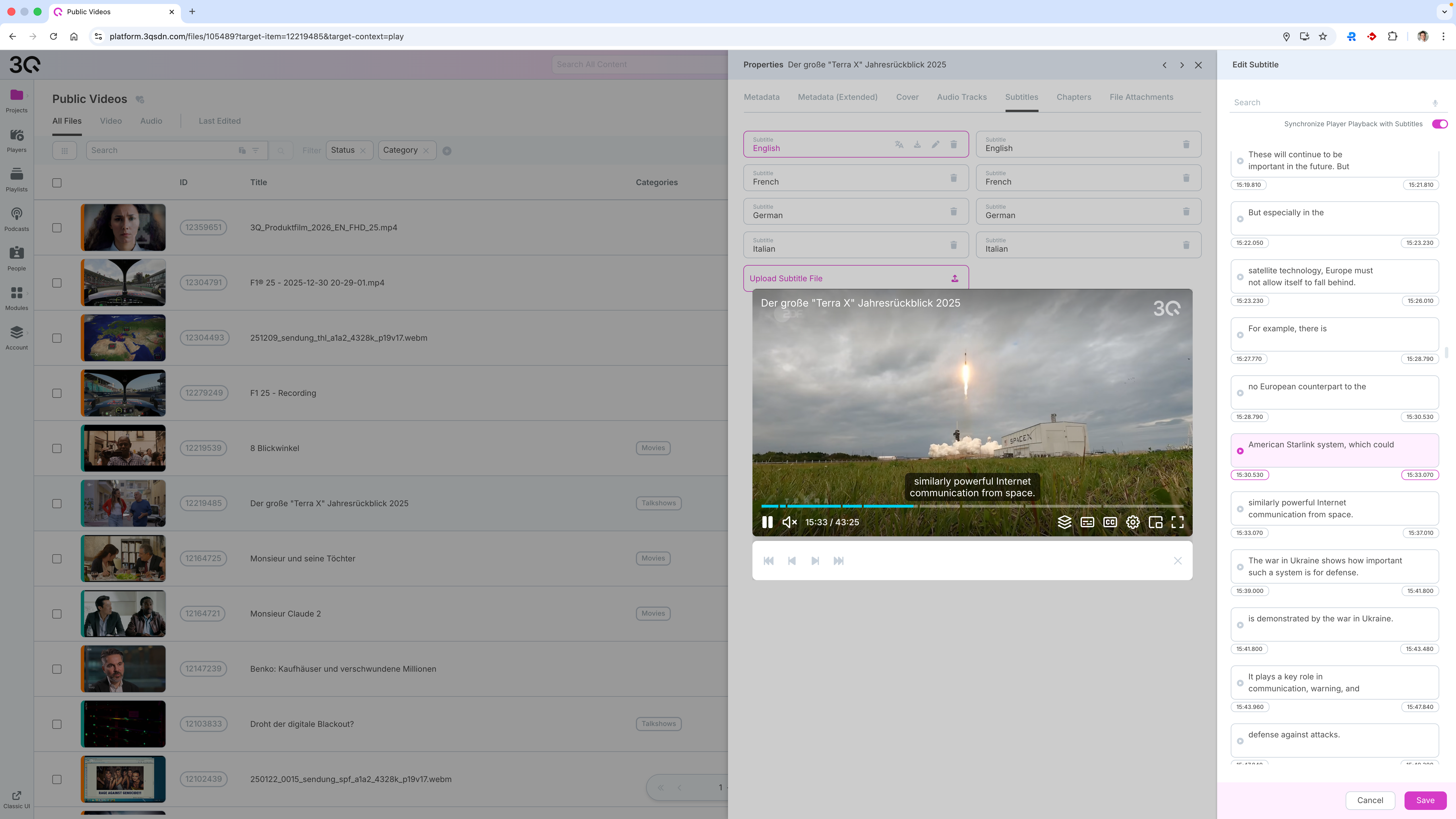
The Subtitles tab provides full subtitle management.
Features include:
Uploading subtitle files (e.g. SRT, VTT)
Managing multiple subtitle languages
Editing subtitles directly in a synchronized editor
Automatically translating subtitles into additional languages
Downloading existing subtitle files
Subtitles can be used for accessibility, localization, and as a basis for AI audio generation.
Chapters

The Chapters tab allows you to structure long-form video content into clearly defined segments, improving navigation and viewer orientation within the player.
Chapters can be created and managed manually or generated automatically using AI. When using AI-based chapter generation, the system analyzes the available audio tracks and subtitles to propose meaningful chapter titles and timecodes. The maximum number of chapters can be configured before generation, allowing control over the level of detail.
Capabilities include:
Creating, editing, and deleting chapters
Defining precise start times and descriptive titles
Automatically generating chapters using AI based on content analysis
Reviewing and adjusting AI-generated chapters before saving
Chapters are displayed directly in the video player and enable viewers to jump to specific sections of the content. This is especially beneficial for documentaries, talk shows, sports analysis, and educational or informational formats.
File Attachments
The File Attachments tab lets you associate additional files with the asset.
Typical attachments include:
Editorial documents
PDFs or supplementary material
Production-related files
Attachments are stored alongside the video and can be accessed by users in the video player if enabled in the player configuration.
Embedding and Sharing
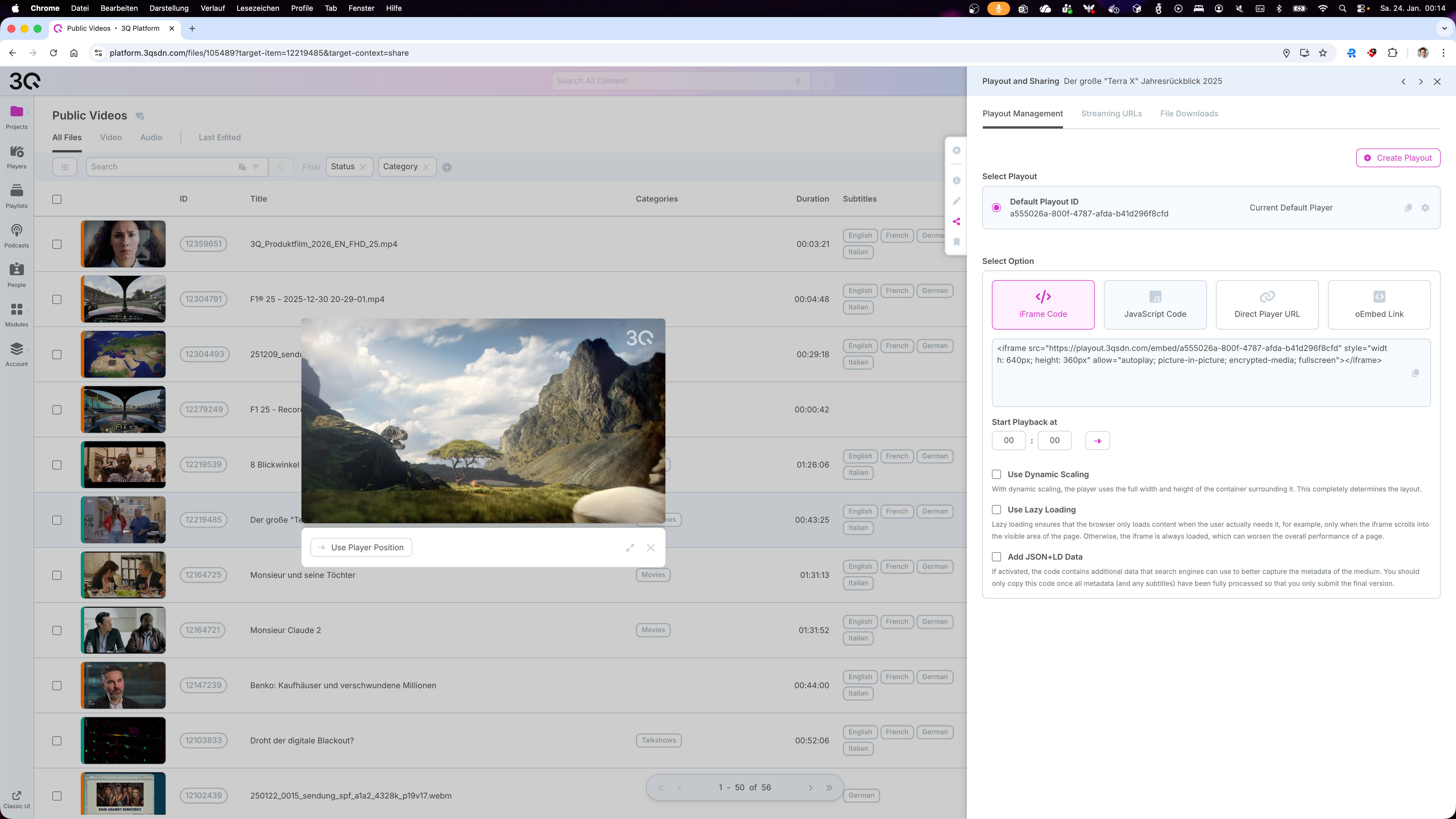
The Playout and Sharing section allows you to publish, embed, and distribute your media assets using different delivery and integration options. It is designed to support both quick embeds and fully customized frontend integrations.

Recommended Integration: Web SDK
For most use cases, we strongly recommend using the 3Q Player Web SDK for embedding videos into customer websites or applications.
The Web SDK enables a dynamic and flexible integration into the customer’s frontend and ensures:
Full compatibility with all platform features (subtitles, audio tracks, chapters, analytics, DRM, etc.)
Automatic handling of adaptive streaming (HLS/DASH)
Centralized updates and player configuration via playouts
Consistent user experience across devices and browsers
This approach is ideal for production environments and scalable deployments.
Embed Options
Within Playout Management, multiple embed options are available depending on the integration requirements:
JavaScript Embed Code Recommended for dynamic websites and applications. Provides full player functionality and configuration via the selected playout.
iFrame Embed Code Suitable for simple integrations where minimal configuration is required.
Direct Player URL / oEmbed Link Useful for quick previews, CMS integrations, or sharing content internally.
Optionally, JSON-LD metadata can be included to improve SEO and enable search engines to better understand the media content.
Note: JSON-LD is a form of structured data designed for search engines and AI systems to better understand and interpret media content. In most cases, JSON-LD metadata is automatically injected by the 3Q video player when enabled in the player settings, making manual integration unnecessary. This option is therefore only required for advanced or custom SEO setups where structured data is managed outside of the player.
Streaming URLs (Custom Player Support)
Customers who prefer to use their own video player can do so by accessing the Streaming URLs.
The platform provides ready-to-use streaming endpoints for:
HLS (H.264, HEVC, or mixed)
MPEG-DASH (H.264, HEVC, or mixed)
These URLs can be integrated into third-party or proprietary players, allowing full control over the playback experience while still benefiting from the platform’s encoding and delivery infrastructure.
File Downloads
In the File Downloads section, users can download media files directly.
Available downloads include:
All generated renditions (e.g. 1080p, 720p, 480p, H.264 and HEVC)
Audio-only tracks (if available)
The original source file (if permitted)
This is especially useful for archiving, offline usage, editorial workflows, or external distribution.
Last updated